
Overview
This application is a simple and fast tool to back up photos from your mobile device (iPhone, Android device, digital camera, etc.) to a PC. Usually you can finish a backup with this tool even before you could press the import button in other common photo tools.
Everything is designed to finish the backup very fast by excluding features unnecessary for it. There are many other fancy photo-management applications — when you need rich features, please use them together.
This application does…
- Copy files that are not yet in your destination folder on the PC, from your mobile device.
- If you need to:
- Exclude specific files by pattern matching.
- Remap destination folder names, to integrate files from multiple mobile devices that have different folder structures.
To be fast, this application intentionally does not…
(Please use other photo-management applications or the mobile device itself for the following.)
- Display images
- Convert image format
- Display thumbnails and select target files one by one
- Delete files on your mobile device
- Delete files in your destination folder on the PC
Usage
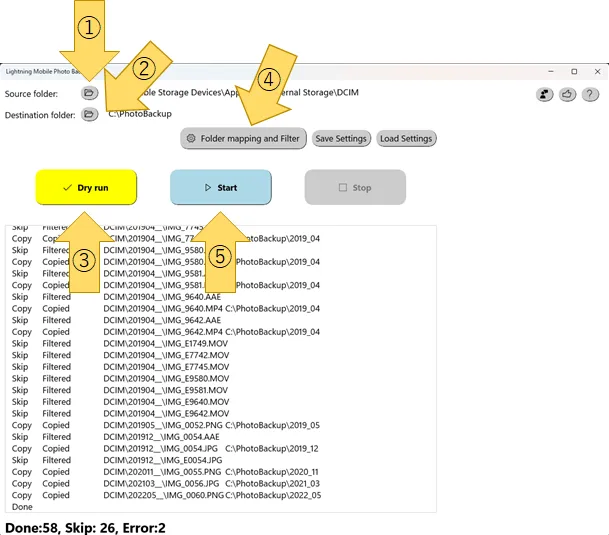
- Connect your mobile device to the PC with a USB cable.
- Wait for the device to be ready to access.
- If it’s not the first time, just press “Start” and wait for completion.
- Select the source folder on the mobile device. It is usually named “DCIM”.
- Select the destination folder on your PC. (Due to Microsoft Store application security policy, the destination folder must be part of the “Pictures library”. If the specified folder is not, the application helps to make it so.)
- Before the actual copy, press “Dry run” to check the app is going to do what you intended.
- (optional) If there is any problem, change folder mapping or filter settings and check again with “Dry run”.
- When you are ready, press “Start” to begin copying files.
Tips
The “Save settings” button saves your folder selection, filter, and folder mapping. If you back up files from multiple devices, you can switch configuration quickly by loading saved settings.
Settings
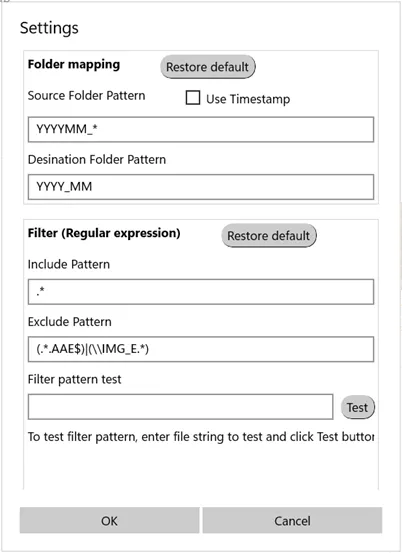
Folder mapping
This setting specifies the folder names of the destination. The default is “Use timestamp” and “YYYY_MM”, which stores files in folders like “2022_01” based on the file’s timestamp. When the timestamp of files on your mobile device is unreliable, you can turn off “Use timestamp” to use the folder structure of your mobile device.
Filter
A copy occurs when the file path matches the “Include pattern” and does not match the “Exclude pattern”. Both are regular expressions, which differ from the Windows rule using “*” and “?”. Please refer to the documentation for detail. You can check your pattern by putting a sample file path in the “Filter pattern test” field and pressing “Test”.
Filter examples
- To copy files only for 2021 and 2022, put
2021|2022in the “Include pattern”. - To exclude *.MOV files, add
|(.*.MOV$)to the “Exclude pattern”.
FAQ
- Under what conditions are files copied?
- The rule is simple: a file is copied if the same file name doesn’t exist in the destination folder.
- If I remove files on my mobile device, are files in the destination folders also removed?
- No. This application doesn’t try to delete any files, on either source or destination.
- I saw some errors in the log. What should I do?
- It often happens when copying many files at once. Just press “Start” again — this time the application only copies files not yet copied, so you usually won’t see errors.
- Can I safely press “Stop” during the process?
- During “Dry run” you can “Stop” anytime. It’s not recommended during the actual copy — rarely, files copied while cancelling are corrupted. (You can manually delete corrupted files in the destination so they’re copied again next run.) The copy runs newest to oldest by folder and file name; after the first run the later process usually just checks whether a file is already copied, at which point you can safely hit “Stop”.
- Why are .AAE and IMG_E files excluded by default?*
- They are editing-information files of iOS devices, only usable on the device itself.