
Overview
This application is for enjoying landscapes and identifying what you see.
- Look around you from an aerial perspective.
- Use the camera to find out where you can see the place you are looking for.
- Find out what a visible object (building, island, mountain, etc.) is.
Modes
Map mode
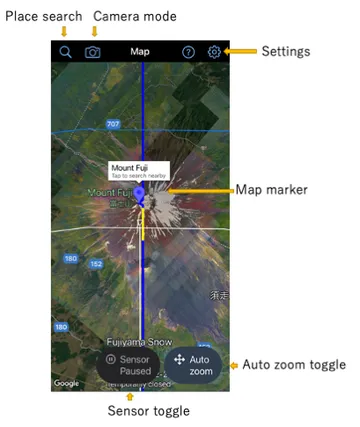
- Tap the marker to search for objects near the marker.
- Long tap to clear the existing marker.
- Long tap where you want to move the marker.
- You can zoom in and out of the map by pinching.
Camera mode
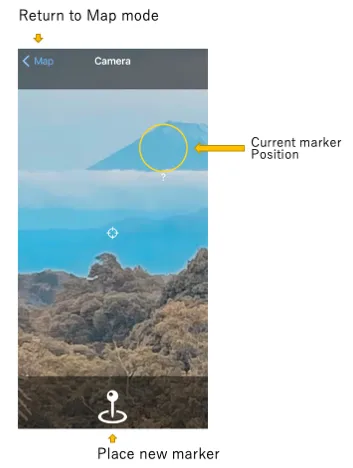
- If there is a marker on the map screen, the location of that marker will be displayed.
- If the marker target is within the camera frame, a share button appears at the bottom of the screen. Tap it to share the photo on social media, etc.
- Tap the “Place Marker” button to set a marker at the position the camera is pointing at.
- (Hint) Tap and hold the “Place Marker” button, aim at the target, then release to stabilize the position.
- You can zoom the camera by pinching.
Search nearby
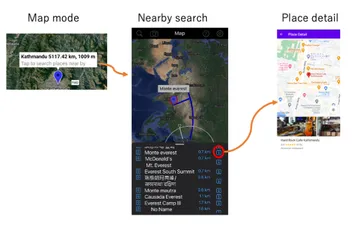
- Tap the marker to search for objects near the marker.
- Tap an icon in the list of locations to see detailed information for that location.
How to
Look around you from an aerial perspective
- The map screen automatically rotates in the direction you point your device, so just change its orientation to look around.
- If you drag the map, it always automatically rotates around your location.
- When you interact with the map, automatic rotation by sensor is turned off. To use the sensor again, tap the sensor button.
- The map magnification changes automatically depending on the tilt of the device. You can fix it by tapping the zoom button and switching to “zoom manual”.
Use the camera to find out where you can see the place you are looking for
- In Map mode, tap the location search button to search and select a location. A marker is placed on the map. If the marker point can be seen from the current location it is shown in yellow, otherwise in blue.
- Tap the camera mode button to switch to camera mode, point the camera in the direction of the arrow, and search for the object.
Find out what a visible object is
- Tap the camera mode button to switch to camera mode.
- Press and hold the “Place Marker” button, center the object in the camera, and release the button.
- Look around the marker displayed on the map to find the target object.
- If the marker position is not appropriate, long tap any position on the map to move it.
- Tap a marker to search near it.
- Tap the name of each list item to display the target location on the map.
- Tap the details button of each item to view details.
The distance shown in the list is the distance between the marker and the searched point (not the distance from your current location).
To judge the pointed object we use altitude information for the direction of the camera, but this does not include the height of artificial objects such as buildings. If you point at something like a tall building it will be interpreted as pointing at the sky and the marker will not be placed correctly — aim the camera at the ground where the building stands.
Temporary deterioration of sensor accuracy
When used indoors, in a car, or near other devices or metal objects, sensor accuracy temporarily degrades. If, when you open a map app, the blue area around your location dot spreads out a lot or the direction fan is wide, accuracy may be degraded and the app cannot determine the correct direction. Please use this app in open areas as much as possible. You can also restore a degraded sensor by moving the device in a figure-8 a few times.
Feedback
Please report bugs, feedback, etc. via the feedback form.